
Track: Making Games · Lesson 9 of 10 · Ages: 8+ · Time: 50 minutes
Look closely at an old video game and you will see that its pictures are made of tiny coloured squares. These squares are called pixels, and a picture made of them is pixel art. Today you will design your own game character on squared paper and then write a program that makes the turtle draw it, one square at a time.
Beep says I am made of pixels in this lesson. Well, a picture of me is. I am hoping my antenna light comes out nice and pink. Beep boop!
What you need
- Squared paper and coloured pencils
- A computer with Python 3, IDLE and the turtle module
- You have used
forloops and met functions - About 50 minutes
Grown-ups The turtle draws on its own window, so the program needs a computer with a screen. If your child prefers, they can do the whole design part with coloured pencils and skip the code, then come back to it another day. The loops inside loops in this lesson are an advanced idea. It is fine to just type the code in and watch it work.
Step 1: design on squared paper
Draw a grid that is 8 squares wide and 8 squares tall. Colour in some squares to make a little robot. Leave other squares empty. A common trick is to draw only half of the character and then mirror it. That makes the picture the same on the left and the right.
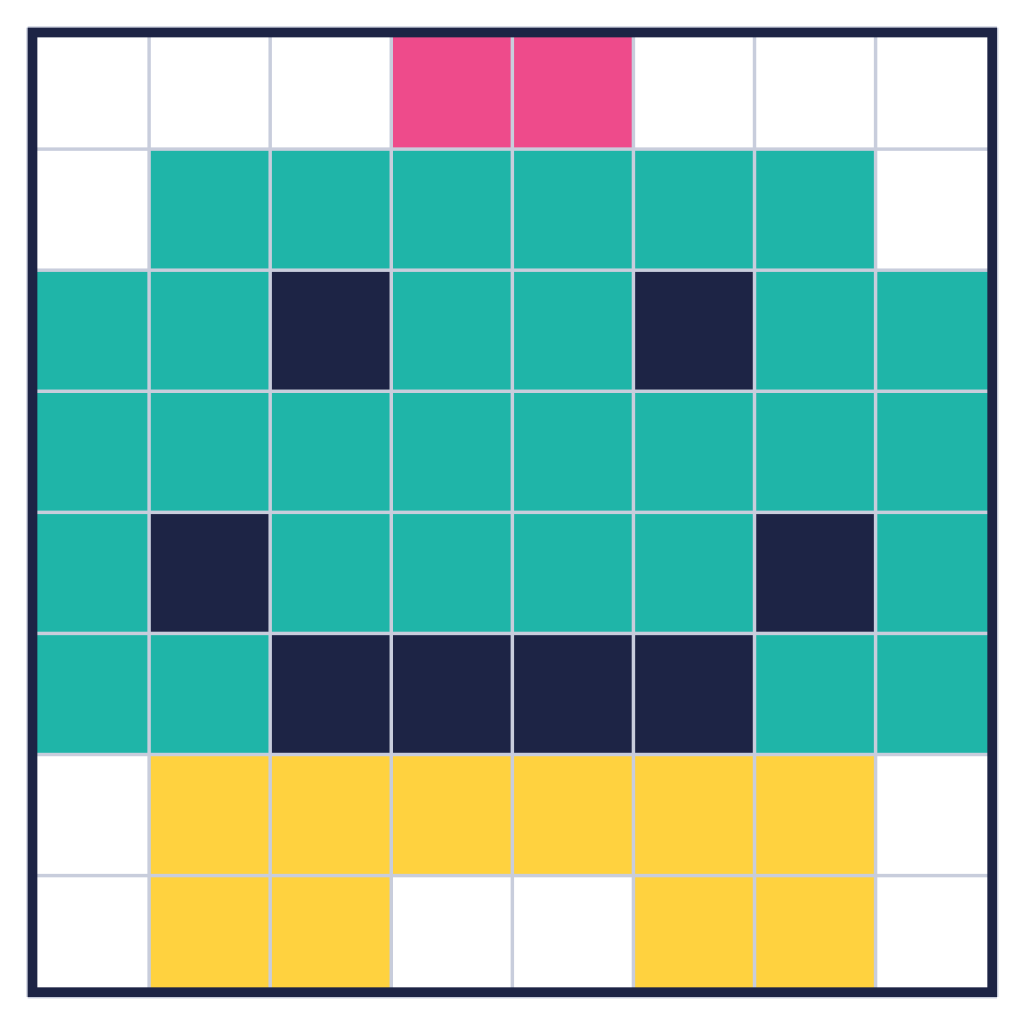
Here is the robot we will build. It has a pink light on top, a turquoise head with navy eyes and a smile, and a yellow body with two feet.
Step 2: write the picture as text
We turn the picture into a list of rows. Each row is a piece of text with 8 letters, one letter for each square. Each letter stands for a colour, and a dot means “leave this square empty”.
| Letter | Colour |
|---|---|
T | turquoise |
I | hot pink |
K | navy |
Y | gold |
. | empty |
Read the first row "...II...": three empty squares, two pink squares, then three empty squares. That is the little light on top.
Step 3: a function that draws one square
A function is a named recipe. Ours is called draw_square, and it needs to know where to draw and which colour to use. Those are its parameters: x, y and colour.
The turtle draws a square by walking forward and turning left four times. begin_fill() and end_fill() tell it to fill the shape with colour. t.penup() lifts the pen so the turtle can jump to a new spot without drawing a line.
Here is the function on its own, drawing three big squares in a row:
import turtle

t = turtle.Turtle()
t.speed(0)
t.hideturtle()
t.penup()

def draw_square(x, y, colour):
    t.goto(x, y)
    t.color(colour)
    t.begin_fill()
    for side in range(4):
        t.forward(40)
        t.left(90)
    t.end_fill()

draw_square(-60, 0, "tomato")
draw_square(-20, 0, "gold")
draw_square(20, 0, "limegreen")

turtle.done()
The turtle’s world has a middle point called (0, 0). The first number, x, tells you how far to go right from the middle (negative means left). The second number, y, tells you how far to go up (negative means down). Each square starts at its bottom left corner and is drawn upwards and to the right.
Pixel says Three squares touching in a row is the beginning of any pixel picture. Now let us make the computer work out the positions so we do not have to! Meow!
Step 4: loop over the rows
Now we put it all together. The outer loop goes down through the rows. The inner loop goes along the letters in one row. For every letter that is not a dot, we look up its colour and call draw_square.
A dictionary is a lookup table. We write colours = {"T": "turquoise", ...} and then colours["T"] gives back "turquoise".
To find where a square goes, we multiply its position by the square size, which is size. The first column starts at x = -80 so the whole picture sits in the middle of the window. Rows go down the window, so we subtract from y as the row number grows.
import turtle

rows = [
    "...II...",
    ".TTTTTT.",
    "TTKTTKTT",
    "TTTTTTTT",
    "TKTTTTKT",
    "TTKKKKTT",
    ".YYYYYY.",
    ".YY..YY.",
]
colours = {"T": "turquoise", "I": "hotpink", "K": "navy", "Y": "gold"}
size = 20

t = turtle.Turtle()
t.speed(0)
t.hideturtle()
t.penup()

def draw_square(x, y, colour):
    t.goto(x, y)
    t.color(colour)
    t.begin_fill()
    for side in range(4):
        t.forward(size)
        t.left(90)
    t.end_fill()

for row_number in range(len(rows)):
    row = rows[row_number]
    for column_number in range(len(row)):
        letter = row[column_number]
        if letter != ".":
            x = -80 + column_number * size
            y = 80 - (row_number + 1) * size
            draw_square(x, y, colours[letter])

turtle.done()
Hooray, there is Beep’s cousin! The picture on the screen matches the squared-paper design square for square. Check it: the pink light is in the top row, the two navy eyes are in the third row, and the smile is in the last two rows of the head.
Each pass of the loop works out two numbers:
x = -80 + column_number * sizemoves right by one square for each column. Column 0 starts at -80, column 1 at -60, and so on.y = 80 - (row_number + 1) * sizemoves down by one square for each row. Row 0 is the highest, with its bottom edge at y = 60, and row 7 is the lowest.
Did you know? Early game machines and home computers had so little memory that pictures had to be tiny. Artists made characters from only a few coloured squares, and they were very clever about it. Pixel art is still popular today because players love the look.
Challenges
Try it Change the colour letters in the dictionary. Can you make a purple robot with a red light? Which lines do you need to change?
Show a hint
You only need to change the colours in the colours dictionary, for example "T": "mediumpurple" and "I": "red". The rows can stay exactly the same.
Try it Draw a heart! Design it on squared paper first. Then change only the rows list and the colours dictionary. Leave the loops and the function alone. That is the power of keeping the picture in a list.
Show the answer
Here is one heart. Notice that only the rows list and the colours dictionary are new. The W square makes a little pink shine.
import turtle

rows = [
    ".RR..RR.",
    "RWRRRRRR",
    "RRRRRRRR",
    ".RRRRRR.",
    "..RRRR..",
    "...RR...",
]
colours = {"R": "red", "W": "lightpink"}
size = 20

t = turtle.Turtle()
t.speed(0)
t.hideturtle()
t.penup()

def draw_square(x, y, colour):
    t.goto(x, y)
    t.color(colour)
    t.begin_fill()
    for side in range(4):
        t.forward(size)
        t.left(90)
    t.end_fill()

for row_number in range(len(rows)):
    row = rows[row_number]
    for column_number in range(len(row)):
        letter = row[column_number]
        if letter != ".":
            x = -80 + column_number * size
            y = 80 - (row_number + 1) * size
            draw_square(x, y, colours[letter])

turtle.done()
Try it Make a bigger version of your character by changing size from 20 to 30. Does it still fit in the window? What would you change to move it back to the middle?
What you learned
- Pixel art is made from small coloured squares, and you can design it on squared paper.
- A picture can be stored as a list of rows, with one letter per square.
- A function such as
draw_squareis written once and used many times. - A dictionary looks up a colour from a letter.
- A loop inside a loop can visit every square of a picture.